Learning Strategy
Accessibility Integration
Instructional Design
Training & Facilitation
WCAG Accessibility Workshop
& Resources for BGSU
All links on this page will open in a new window.
Tutorial videos and virtual workshop video clips are
available at the bottom of this page.

Context
Public universities are required to meet WCAG 2.1 success criteria by April 24, 2026. While there is strong interest across the BGSU learning community in meeting these requirements, some faculty and staff are unsure where to begin or how to apply accessibility practices within their existing workflows.
The Center for Faculty Excellence is responsible for supporting campus-wide teaching and learning initiatives. With a small team and a large audience to support, they needed practical, scalable training that would help faculty remediate existing materials and create more accessible content moving forward. The solution also needed to fit into busy schedules and support ongoing reference and reuse.
Design Considerations
The Director of the Center for Faculty Excellence reached out to explore whether I could facilitate a virtual workshop and create supporting resources.
After discussing the audience, timelines, and available systems, we identified three primary needs:
-
Build awareness of why accessibility matters for all members of the learning community, not just for legal compliance.
-
Provide clear, tool-specific guidance that faculty could apply immediately using systems they already use.
-
Offer flexible learning options that support both live participation and long-term, on-demand access.
The challenge was to balance compliance requirements with an approachable learning experience that reduced overwhelm and encouraged adoption.
Solution
I designed a blended learning solution focused on practical accessibility fundamentals for Microsoft Word. The content was aligned to WCAG 2.1 success criteria, but intentionally framed in plain language to reduce jargon and cognitive load.
Based on audience needs and time constraints, I focused on five high-impact topics that faculty could apply immediately to existing documents: color contrast, alt text, heading structure, hyperlinks, and font and style choices.
The solution combined live instruction, hands-on practice, and reusable resources to support both immediate application and continued learning after the session.
Key Components
-
90 Minute Virtual Facilitation on Zoom: I designed and facilitated an interactive workshop using PowerPoint slides, live demonstrations in Microsoft Word, and guided practice. Participants were encouraged to work in their own documents or use a provided remediation file. A Padlet activity supported reflection and peer learning, while live demonstrations modeled real-world workflows.
-
Video Tutorials: I recorded short, focused video tutorials in Camtasia for each topic covered in the workshop. These videos demonstrate step-by-step implementation in Microsoft Word and introduce supporting tools such as the WebAIM Color Contrast Checker and browser bookmarklet. The videos were designed for just-in-time use and are being added to BGSU's Just In Time Resource Library
-
Microsoft Word Accessibility Checklist: Using an existing PowerPoint accessibility checklist created by BGSU, I analyzed the structure and adapted it for Microsoft Word. The checklist aligns with the workshop content and video tutorials, reinforcing consistent language and expectations across formats.
-
Future Workshops & Resources: Based on the effectiveness of the Word-focused materials, I was asked to explore a future workshop covering PowerPoint accessibility. This would include updating the existing checklist and creating new video tutorials using the same instructional framework.

Impact
Evaluation was intentionally built into the design of this initiative to assess learning effectiveness, guide future improvements, and support long-term accessibility adoption across the institution.
-
Participant Reflection and Immediate Application: At the conclusion of the live workshop, participants will complete a short Padlet activity to identify one accessibility practice they feel confident implementing immediately and one question they still have. This qualitative feedback will be used to identify areas of clarity, remaining barriers, and opportunities to refine both the facilitation and supporting resources.
-
Post-Session Feedback and Continuous Improvement: All participants will complete BGSU’s facilitated session reflection form. This feedback will be shared with the Center for Faculty Excellence and reviewed to evaluate learner confidence, perceived relevance, and overall session effectiveness. Findings will inform revisions to the workshop and guide the development of future accessibility sessions.
-
Compliance Progress Monitoring: As faculty apply the practices introduced in the training, remediated and newly created content will be reviewed against WCAG 2.1 success criteria for the topics covered. This approach supports tracking progress toward institutional compliance goals leading up to the April 2026 deadline.
-
Sustained Adoption: The on-demand videos and checklists were designed to function as ongoing reference tools. Continued use of these resources will support reinforcement of learning over time and allow the Center for Faculty Excellence to identify areas where additional guidance or expanded training may be needed.
Roles and Responsibilities
Learning Designer • Facilitator • Learning Needs Analysis • Accessibility Strategy and Guidance • Multimedia Learning Design and Video Production • Evaluation Planning and Continuous Improvement
Programs & Tools Used
Microsoft Word • Camtasia • Audiate • Snagit • Microsoft PowerPoint • Jira • Zoom • Padlet • YouTube • SharePoint • Canva
My Process
Project Management
As an external facilitator, I did not have access to BGSU’s internal project management systems. To support transparent collaboration and efficient decision making, I selected a Jira Kanban board to manage scope, timelines, and approvals. This approach aligned well with the Director of the Center for Faculty Excellence’s familiarity with tools like Trello, allowing us to focus on the work rather than onboarding to a new system.
A Kanban workflow was intentionally chosen to support flexible prioritization, iterative review, and clear visibility into work in progress. Jira tickets tracked deliverables, feedback, and approval status, helping us manage dependencies across live facilitation, video production, and supporting resources.
Confluence integration supported shared documentation and version control, ensuring both stakeholders were always working from the most current materials without repeated file uploads or confusion around file versions.
For multimedia review, Camtasia videos were shared using Screencast links directly within Jira. This allowed for asynchronous review, time-stamped feedback, and efficient approval prior to final exports and storage in SharePoint.

Needs Analysis & Design Documents
The kick-off meeting was held eight weeks prior to the virtual workshop. During this phase, I conducted a needs analysis and created design documents to clarify goals, scope, delivery approach, and evaluation strategy. These artifacts informed instructional decisions and ensured alignment between stakeholder expectations and learner needs.


Facilitation Planning
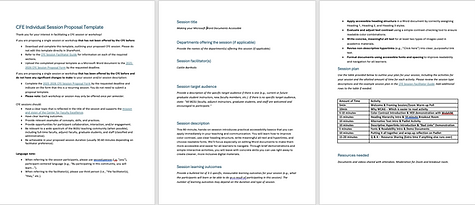
I began with a Live Document in Confluence of a facilitation brainstorm and used comments for feedback and iterations. From the brainstorm I created my Facilitation Proposal to submit to the CFE one month prior to the workshop. After this was approved, I worked on a more detailed workshop outline including all necessary links. The final draft of this would also be shared with the Director, who would be moderating the Zoom chat and adding necessary the links during the presentation, but not shared with the attendees.

Video Script and Creation
Each video was planned using a brief outline that defined the objective, task flow, and expected learner action. Outlines were reviewed and approved prior to scripting to ensure alignment with project goals and scope. I then developed full scripts to guide screen recording in Camtasia, allowing for clear, consistent narration and efficient editing.
When recording and editing the videos, I intentionally paced narration to allow learners time to follow along in their own documents and used visual spotlighting to draw attention to key areas within Microsoft Word.
After editing, each script was refined into a complete transcript and shared alongside the finished video as a .txt and DOCX file in SharePoint. This approach ensured accurate captions when videos were uploaded to YouTube and supported easy reuse of transcript files without additional remediation.
Videos were intentionally designed to be task-focused, allowing learners to access specific guidance when needed. Chapters were added to each video to support quick navigation and reduce time spent searching for information.
Sample artifacts are included below, including a one-minute video clip and full video script.

Making Your Microsoft Word Documents Accessible - Color Contrast

Workshop Facilitation
Video Clips
February 13th Accessibility Workshop Clips


Workshop Intro Clip

Color Contrast Clip

Color as Meaning Clip
